Dealertrack printing — without all the paper.
Statements, receipts, repair orders, invoices, and more — printed, stacked, and filed, because printing has long been the simplest way to get a properly formatted copy for the customer. PrintSent changes that.
Want a guided tour of the software? Watch the 4-minute demo →
Read the video transcript
PrintSent — Dealertrack printing, without all the paper.
Every day, your dealership prints hundreds of documents from Dealertrack — statements, receipts, repair orders, invoices, and more. You print because it has long been the simplest way to get a properly formatted copy to hand to the customer. Printed, stacked, filed — because until now, there hasn't been a reliable digital alternative.
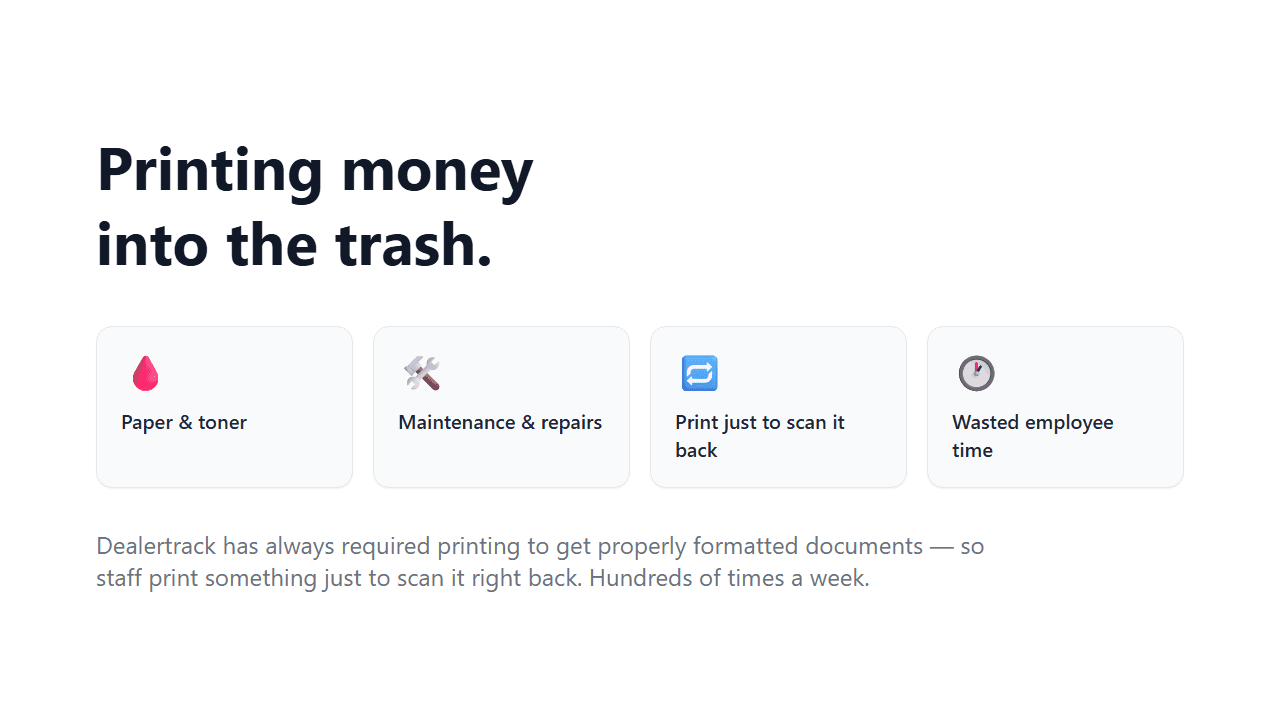
That printer isn't just a minor inconvenience — it's a symptom of a deeper limitation. Dealertrack often requires printing to get properly formatted documents with your logos and templates. Because there hasn't been a reliable digital alternative, employees have had to print something just to scan it back to themselves or the customer. Every week, dealerships are essentially printing money into the trash — paper, toner, printer maintenance, repairs, and valuable employee time — hundreds of times, just to get a digital copy of a file.
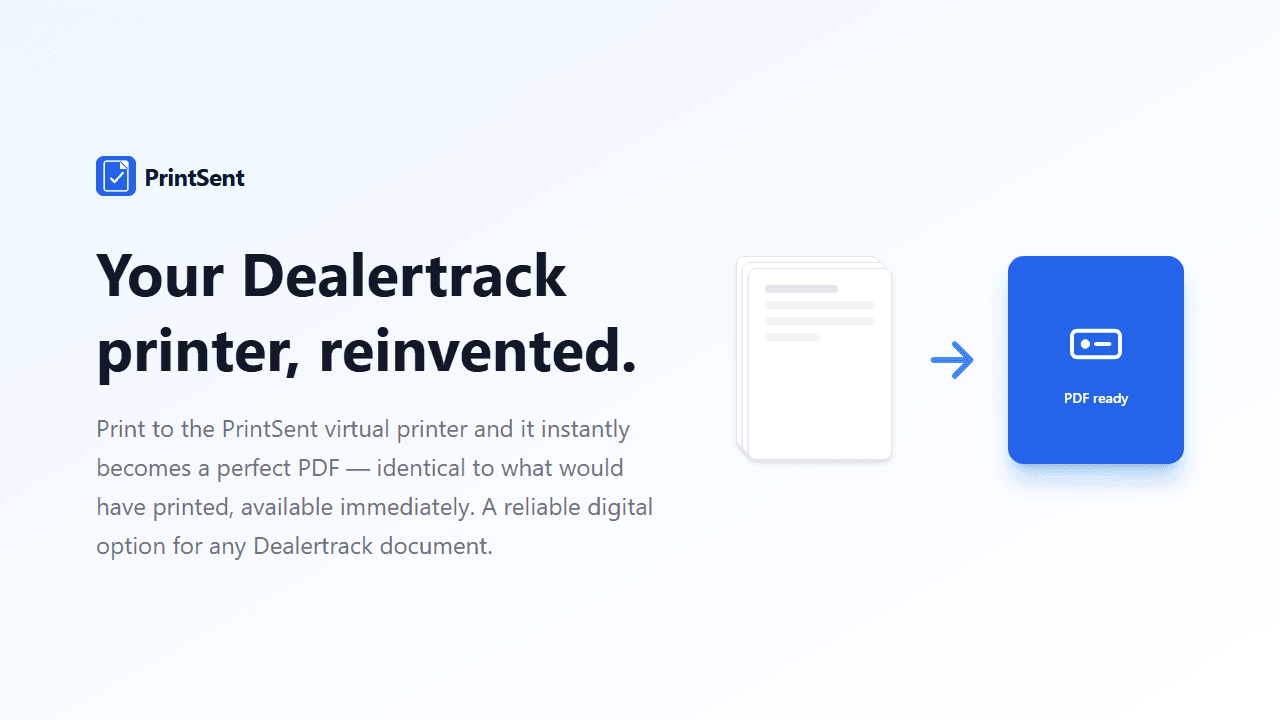
PrintSent solves that. When your team prints to the PrintSent virtual printer in Dealertrack, it instantly captures the job and turns it into a perfect PDF that looks exactly like what would have printed out — immediately available. Now you finally have a reliable digital option for any or all of your Dealertrack printing.
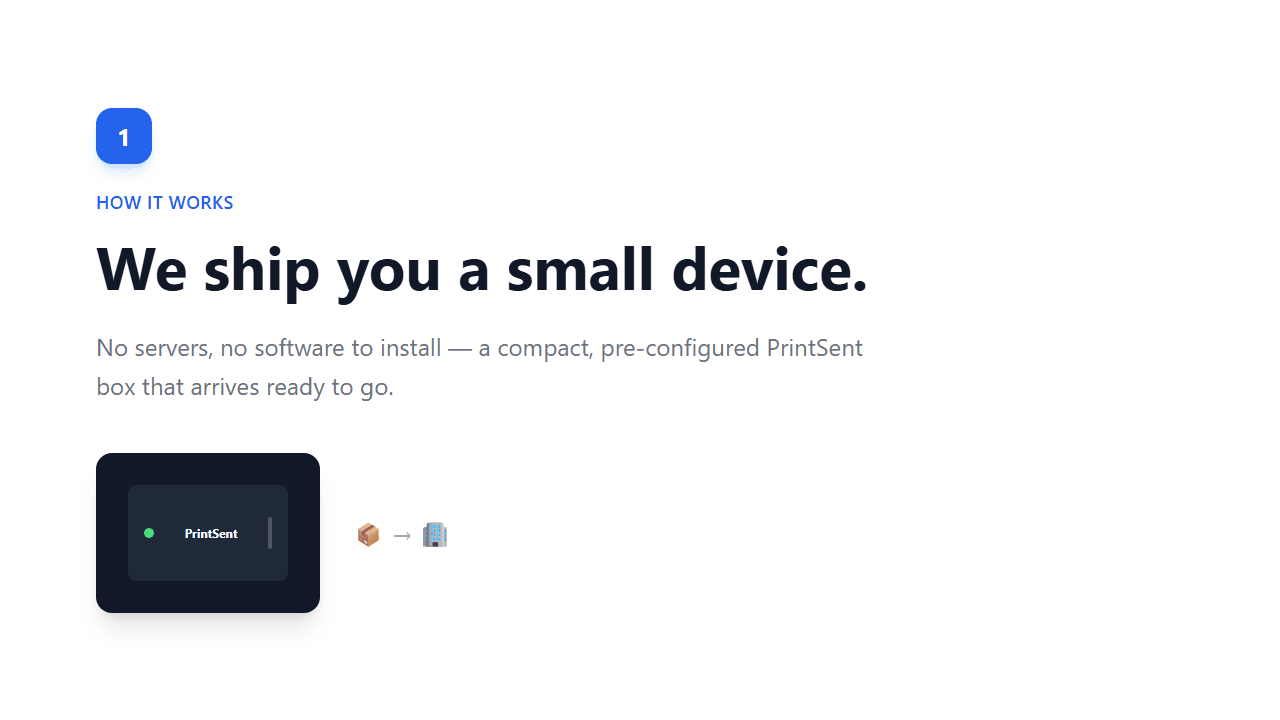
Here's how simple it is. First, we ship you a small, pre-configured device. No servers, no software to install — just a compact PrintSent box that arrives ready to go.
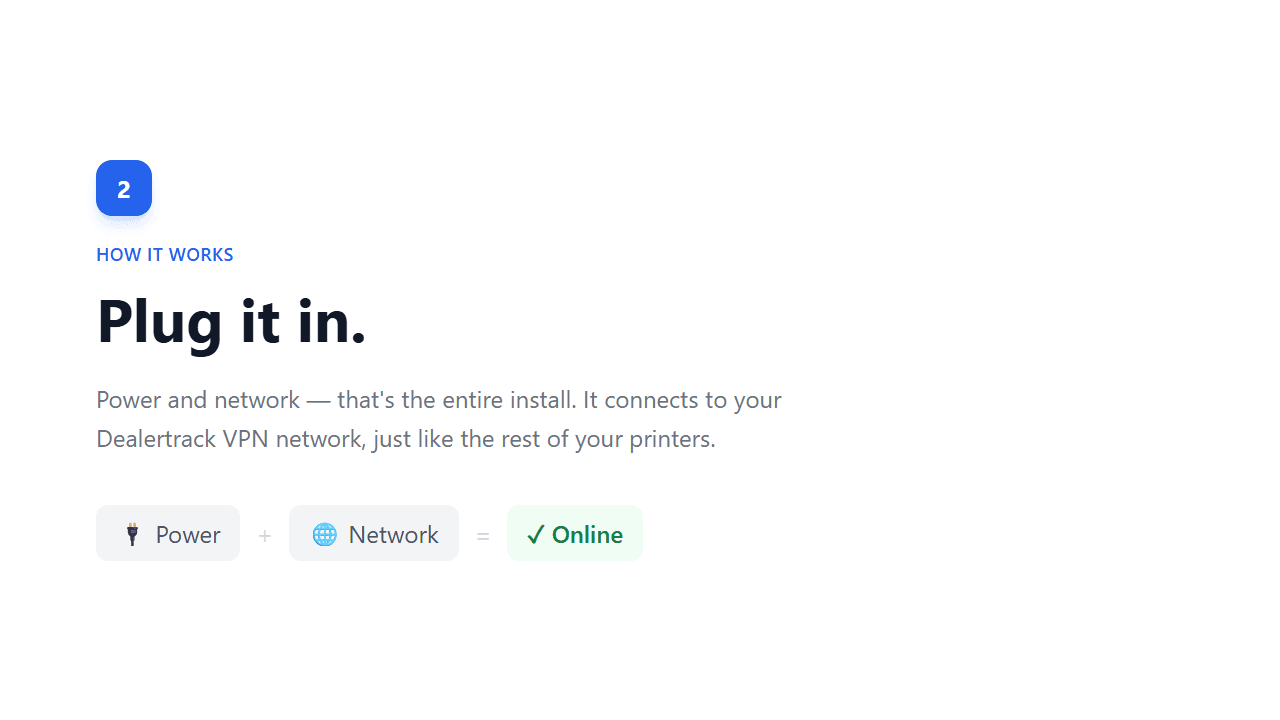
Second, you simply plug it in — power and network. That's the entire installation. It connects directly to your Dealertrack VPN-connected network, just like the rest of your Dealertrack printers.
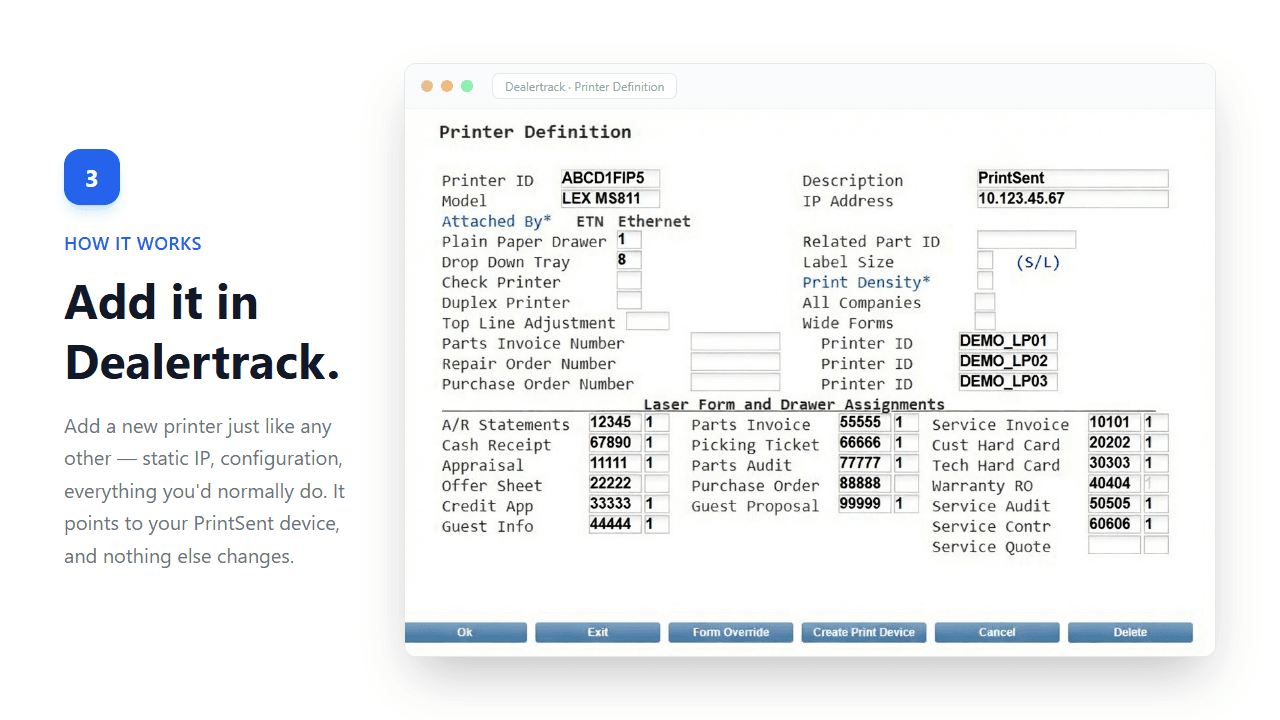
Third, in Dealertrack you add a new printer just like any other — using a static IP address, configuration settings, and everything else you'd normally do. It points to your PrintSent device, and nothing else about your existing setup changes.
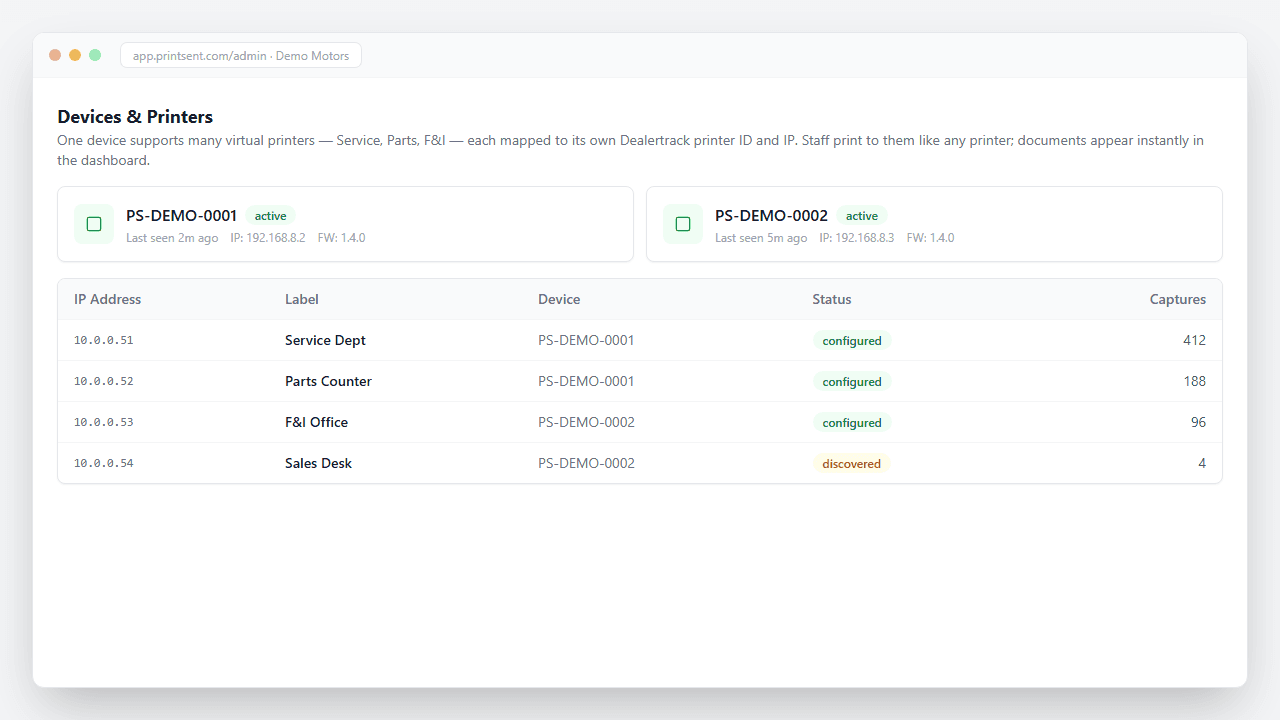
One small device can support many virtual printers — one for Service, one for Parts, and more — each mapped to its own Dealertrack printer ID and IP address. Employees print to those PrintSent printer IDs exactly like any other printer, except instead of printing on paper, the documents appear instantly in the digital dashboard.
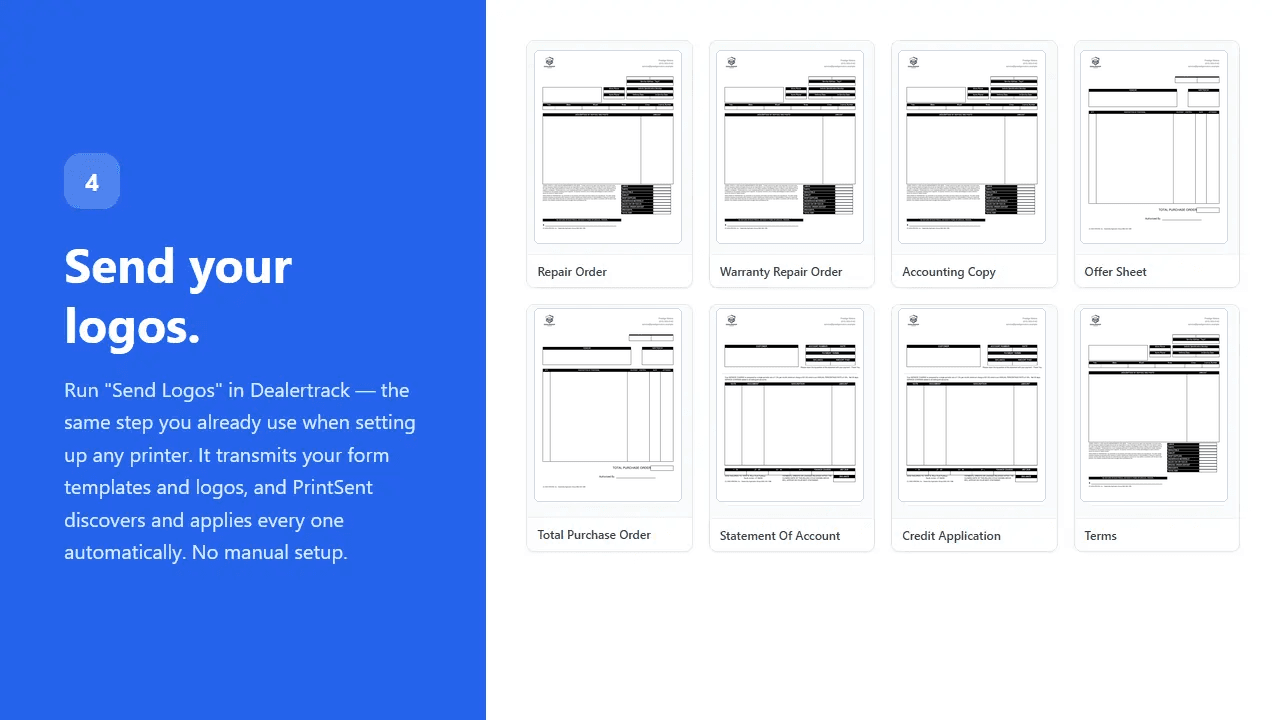
Fourth, from Dealertrack you run Send Logos — the exact same step you already use when setting up any printer. This transmits your form templates and logos, and PrintSent automatically discovers and applies every one. No manual setup required.
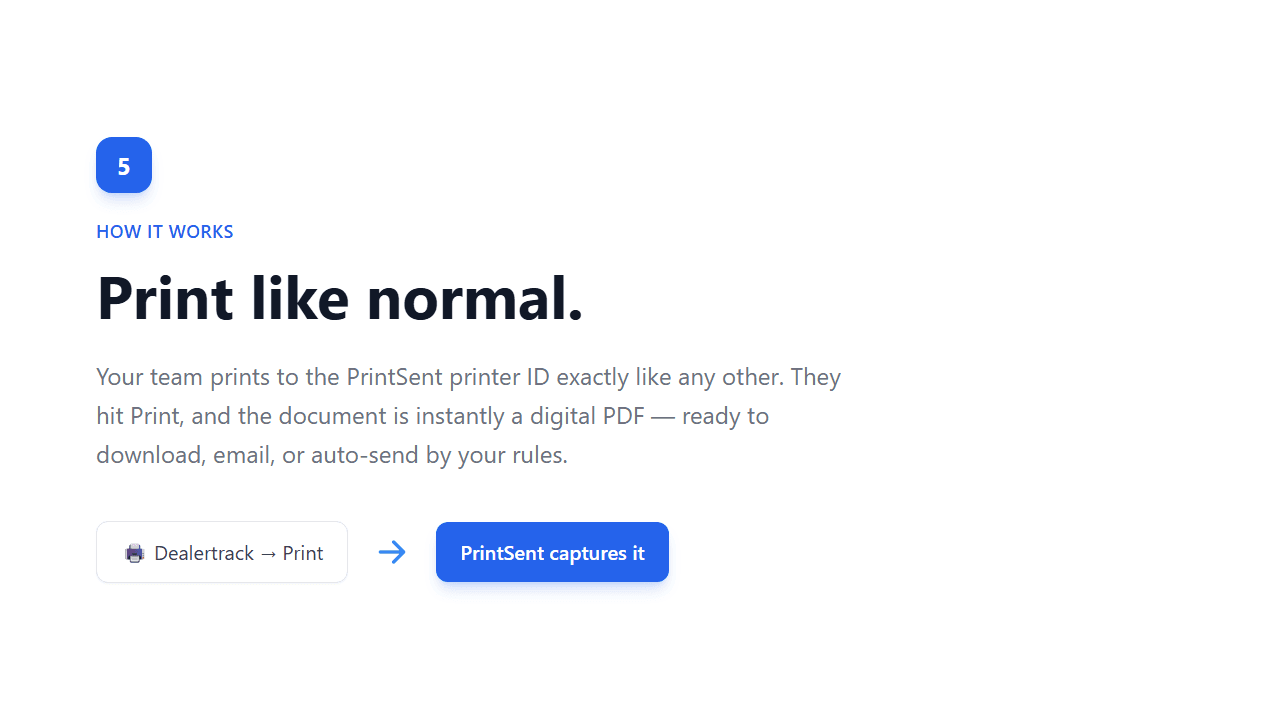
And fifth — your team prints to that PrintSent printer ID exactly like any other printer in Dealertrack. There's nothing new to learn. They simply hit Print, and the document is instantly available as a digital PDF — ready to download, email to a customer, or automatically sent based on your configured rules.
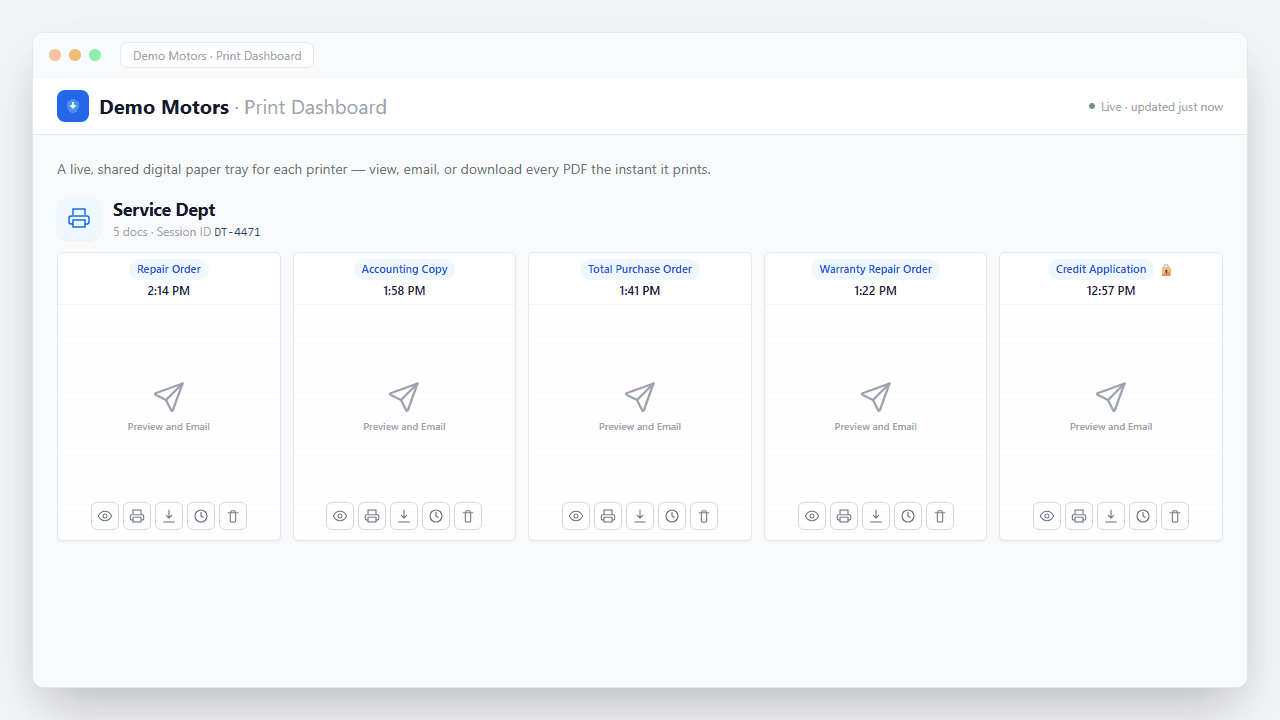
Documents appear instantly in the dashboard the moment they print — no paper, no waiting. You get a live, shared digital paper tray for each printer, with a user-friendly dashboard that lets your team view, email, or download the PDF right away.
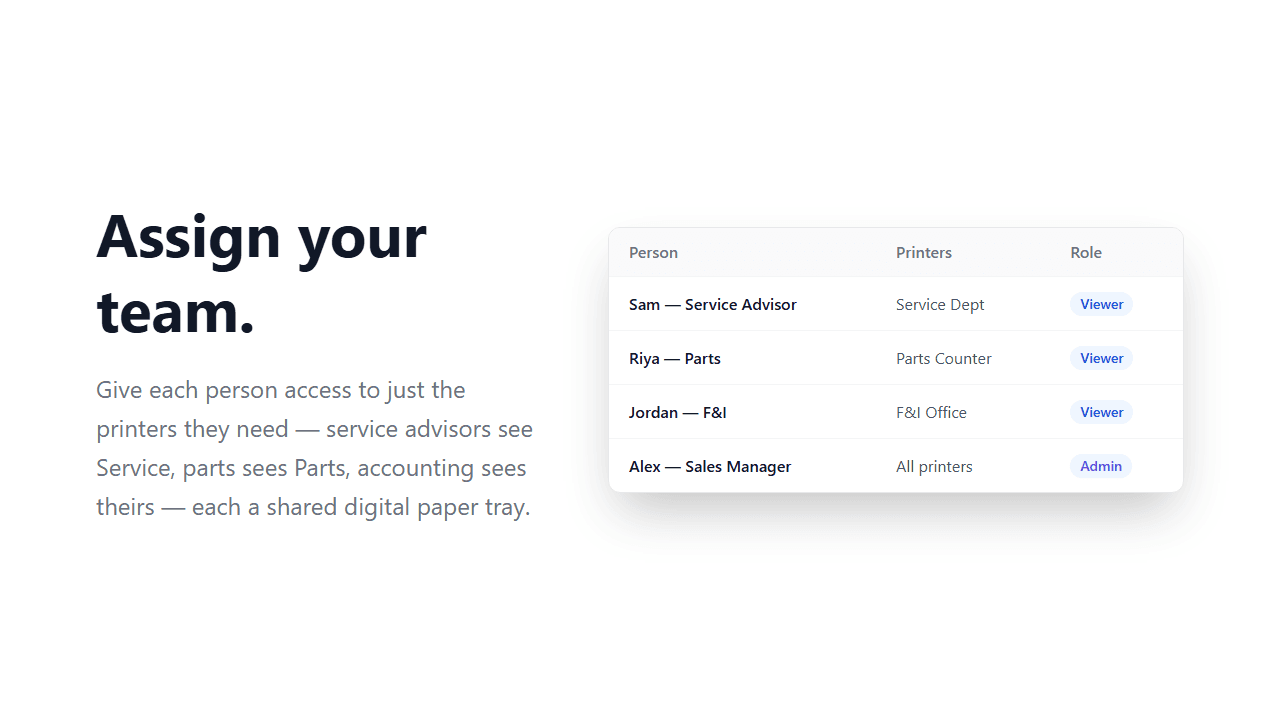
Give each person access to just the printers they need. Service advisors see only Service documents, Parts sees the Parts printer, and Accounting sees their documents — all in a shared digital paper tray.
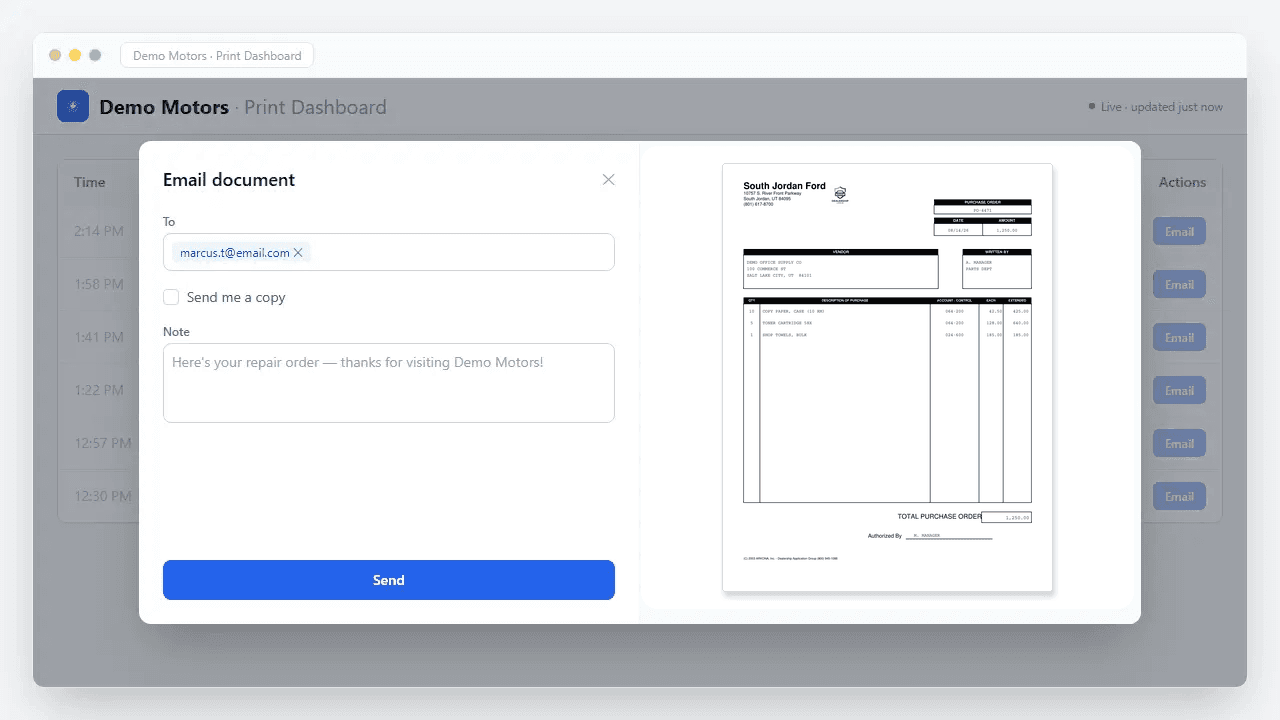
From any document, your team can view it, download it, or print it on demand. They can also email it straight to the customer or vendor with a live preview and a personal note — perfect when someone requests a copy by email and needs it quickly.
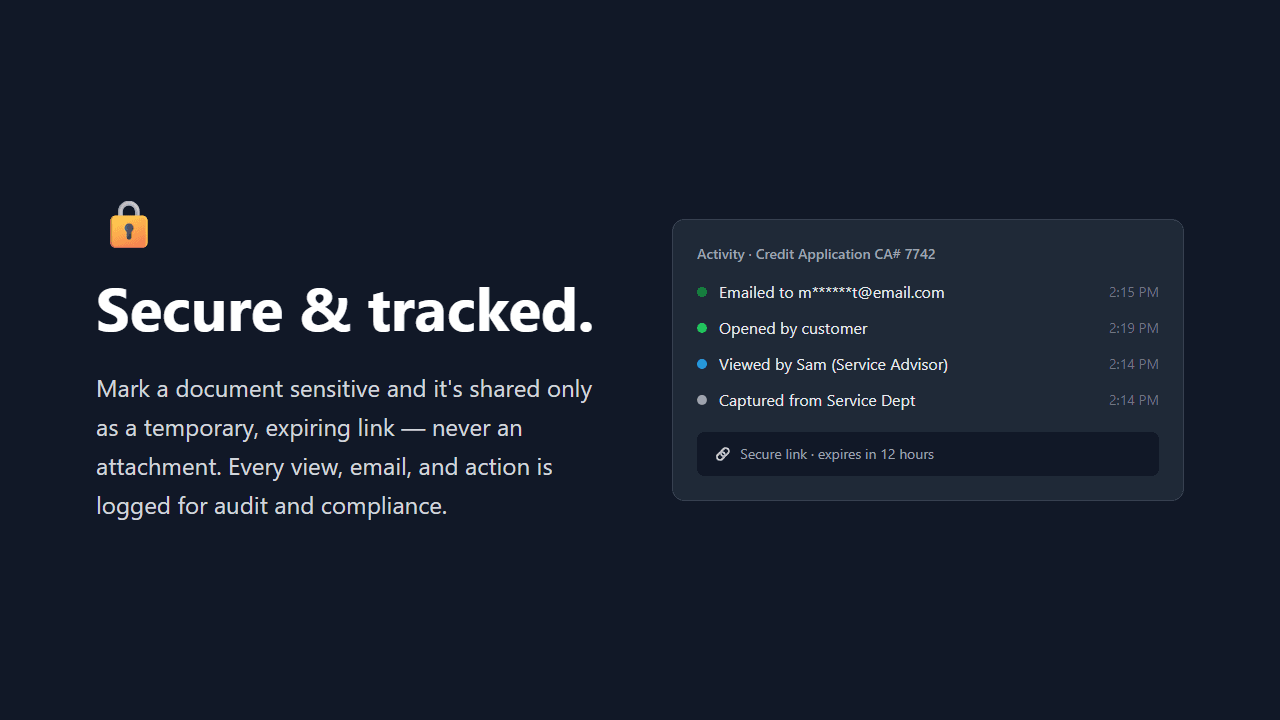
And it's secure. You can mark certain documents as sensitive to ensure they are only shared as temporary, expiring links instead of attachments. Every view, every email, and every user action is fully logged for audit and compliance.
The result is real savings: less paper, lower toner and printer maintenance costs, and a team that moves faster. Dealerships have the potential to save thousands of dollars a month by reducing print expenses and giving valuable time back to their staff.
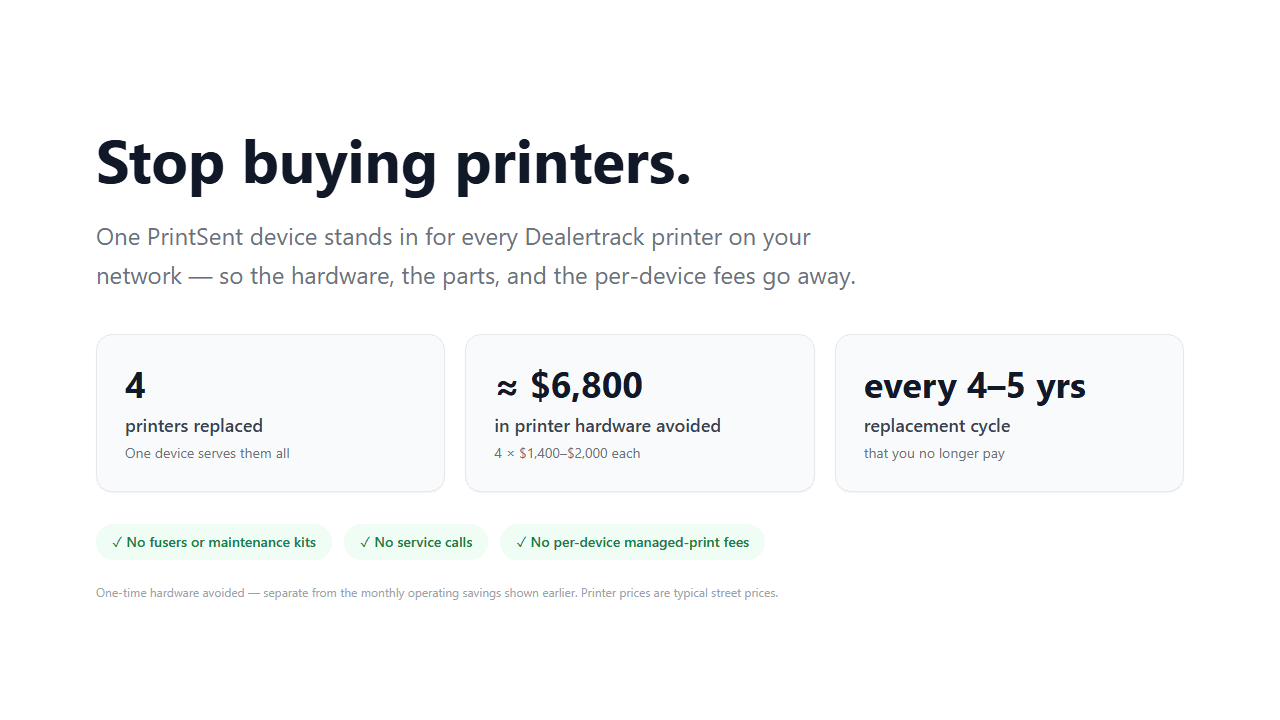
One PrintSent device replaces every Dealertrack printer, so you stop buying the printers themselves, along with the fusers, service calls, and per-device managed-print fees.
Ready to go paperless? We'll ship your device and work with your IT or DMS admin to have you up and running in minutes. It's as simple as adding one more printer in Dealertrack. Get started today at PrintSent.com.
Five simple steps, start to finish.
No servers and nothing new for your team to learn — as simple as adding one more printer in Dealertrack.
Inside the dashboard.
Documents appear the instant they print — no paper, no waiting. Your team views, emails, or downloads every PDF right from a shared digital tray.
Real savings in one month
$1,190
At one Dealertrack dealership — on pace for $14,275/yr
32.0 hrs
Time Saved
959
Documents
1,768
Pages Saved
333
Emails Sent
One month of actual usage at a Dealertrack dealership — $0.04/page in print costs avoided, plus ~2.0 min/document of staff time (walk + scan) at $35/hr. Conservative: excludes printer hardware, leases, service contracts, shredding & postage — the savings a dealership unlocks going paperless.
Dig into the details
Dealertrack hub
Every PrintSent topic for Dealertrack in one place.
Print Dealertrack to PDF
How the full print stream becomes a pixel-perfect, branded PDF.
Print to email from Dealertrack
The workflow that replaces print-scan-email at the desk.
Virtual printer for Dealertrack
The full definition of what a virtual printer is and does.
Ready to see it in action?
Tell us about your dealership and we will get you set up.